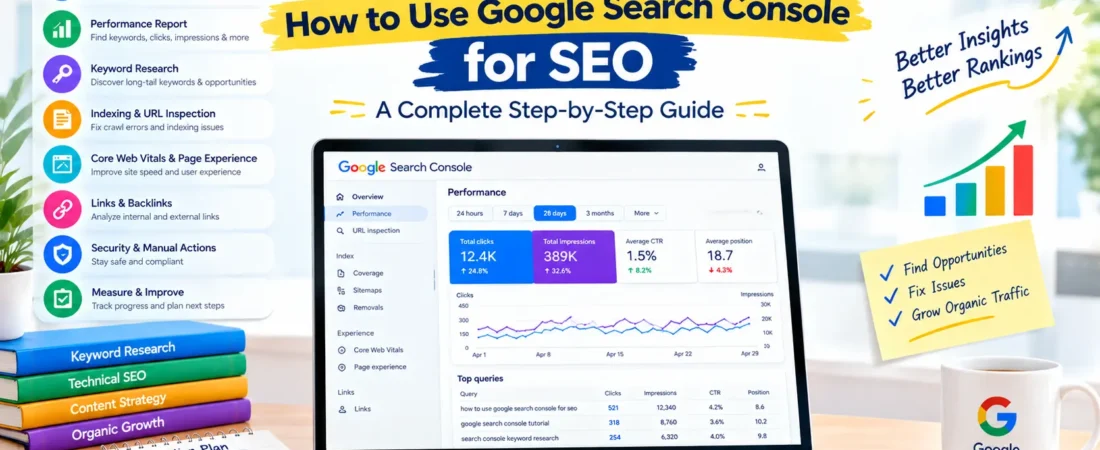
How to Use Google Search Console for SEO
Search engine optimization is not just about publishing content, building backlinks, and adding keywords to web pages. To improve your website’s organic performance, you also need to understand how Google discovers your pages, which searches bring visitors to your website, and where your SEO strategy needs improvement.
This is where Google Search Console (GSC) becomes an essential tool.
Google Search Console is a free service from Google that helps website owners monitor their site’s presence in Google Search. It provides information about search queries, impressions, clicks, indexing, page experience, and certain technical issues that may affect how your website appears in search results.
Whether you manage a personal blog, a business website, an ecommerce store, or a large website, learning how to use Google Search Console for SEO can help you make more informed decisions.
In this guide, you will learn how to set up Google Search Console, understand its main reports, find keyword opportunities, troubleshoot indexing problems, measure SEO results, and build a practical optimization workflow.
What Is Google Search Console?
Google Search Console is a free website monitoring tool that helps you understand how your website performs in Google Search and whether Google has encountered certain technical or indexing problems.
Unlike analytics tools that primarily measure what visitors do after arriving at your website, Search Console focuses on your website’s performance and visibility in Google Search.
For example, it can help you understand:
Which search queries display your pages in Google.
How many clicks your website receives from organic search.
How often your pages appear in search results.
Which pages have indexing issues.
Whether Google has detected certain usability or experience problems.
Which websites link to your content.
Whether your submitted sitemap has been processed.
Search Console does not directly control your rankings. Instead, it provides information that you can use to identify problems and improve your SEO strategy.
Why Is Google Search Console Important for SEO?
Search Console is valuable because it helps you make decisions based on actual search performance rather than assumptions.
1. Discover the keywords bringing visitors to your website
You may optimize an article for one primary keyword but discover that Google also displays it for dozens of related queries.
These queries can reveal additional topics to cover, sections to improve, or new articles to publish.
2. Identify pages with optimization opportunities
Some pages may receive many impressions but relatively few clicks. Others may attract clicks but have limited visibility.
Analyzing these patterns can help you prioritize content improvements.
3. Monitor indexing
A page cannot normally receive organic search traffic from Google unless it is indexed and eligible to appear in search results.
Search Console helps you investigate whether Google has indexed your pages and understand certain reasons why other URLs are excluded.
4. Measure the results of SEO activities
After updating titles, improving content, fixing internal links, or publishing new articles, you can monitor subsequent search performance.
This helps you assess whether your changes appear to be contributing to better visibility.
5. Identify technical SEO issues
Search Console reports can help identify certain crawling, indexing, mobile usability-related experience, and structured data issues, depending on the reports and features available for your property.
Important: Search Console reports do not identify every SEO problem. They work best when combined with website crawlers, analytics, page-speed tools, and manual testing.
How to Set Up Google Search Console
Before using Search Console for SEO, you need to add and verify your website.
Step 1: Open Google Search Console
Visit the official website:
https://search.google.com/search-console/
Sign in using your Google account.
Step 2: Add your website property
Google provides two main property types.
| Property Type | What It Covers | Verification |
|---|---|---|
| Domain property | All supported protocols and subdomains under the domain | DNS verification |
| URL-prefix property | URLs matching the specified prefix | Multiple verification methods may be available |
For example, a Domain property for harishmandokar.com covers supported variations such as HTTP, HTTPS, and subdomains.
A URL-prefix property for https://harishmandokar.com/ covers URLs under that exact prefix.
For most website owners who can manage DNS records, the Domain property provides the broadest overview.
Step 3: Verify ownership
For a Domain property, Google generally requires adding a DNS TXT record through your domain provider or DNS hosting service.
Follow the verification instructions shown in Search Console.
For a URL-prefix property, available methods may include an HTML file, HTML tag, Google Analytics, Google Tag Manager, or DNS verification, depending on your setup and permissions.
Do not remove a verification record or file unless you have confirmed that another valid verification method is in place.
Step 4: Submit your XML sitemap
Once your property is verified:
Open Google Search Console.
Select your website.
Navigate to Sitemaps.
Enter your sitemap URL.
Submit it.
Check the status and any reported issues.
For many WordPress websites, the sitemap is available at a URL such as:
https://example.com/wp-sitemap.xml
SEO plugins may generate a sitemap index at a different URL, such as:
https://example.com/sitemap_index.xml
Use the actual sitemap URL generated by your website.
Submitting a sitemap helps Google discover your preferred URLs, but it does not guarantee that every submitted page will be crawled or indexed.
Step 5: Allow time for data collection
After verification, some reports may need time to populate. Search performance data is not necessarily available immediately, and indexing can take additional time.
Keep publishing useful content, make sure important pages are accessible, and review the reports as data becomes available.
Understanding the Google Search Console Dashboard
The Search Console interface includes several reports and tools. The exact reports available may vary according to your property and Google’s current interface.
| Report or Tool | Main Purpose | SEO Use |
|---|---|---|
| Performance | Measures search clicks, impressions, CTR, and average position | Find keyword and page opportunities |
| URL Inspection | Shows information about an individual URL in Google’s index | Investigate indexing and request recrawling |
| Indexing | Reports indexed and non-indexed pages | Diagnose URL coverage patterns |
| Sitemaps | Shows submitted sitemap processing status | Help Google discover important URLs |
| Page experience and Core Web Vitals | Reports supported experience metrics | Identify experience-related improvements |
| Links | Shows reported internal and external linking information | Review link patterns |
| Manual Actions | Reports certain manual spam actions | Investigate manual enforcement |
| Security Issues | Reports certain detected security problems | Respond to security warnings |
| Enhancements | Reports supported structured data features when applicable | Troubleshoot eligible markup |
You do not need to inspect every report daily. Focus first on the reports that relate directly to your website’s goals and current problems.
1. Use the Performance Report for Keyword Research
The Performance report is one of the most useful features in Search Console.
It shows how your website performs in Google Search over a selected date range.
The primary metrics include clicks, impressions, average click-through rate, and average position.
Understand the four main metrics
Total clicks: The number of clicks your website received from Google Search within the selected report and filters.
Total impressions: How many times your website’s results were shown in the search results under Google’s reporting rules.
Average CTR: The percentage of reported impressions that resulted in clicks.
Average position: An aggregate position metric for your site’s search results. It is not a fixed ranking for every user, location, or search.
How to find keyword opportunities
Open the Performance report.
Select the Search results report.
Choose a useful date range, such as the last three months.
Open the Queries tab.
Review the search queries associated with your website.
Sort or filter the data to identify relevant opportunities.
Export the data if you want to perform a deeper analysis.
Suppose you publish an article about long-tail keywords and notice that it receives impressions for searches such as:
how to find long-tail keywords for SEO
long-tail keyword research tools
long-tail keyword examples
how to find low-competition keywords
These queries can reveal how Google understands the page and what users are searching for.
You can then decide whether to improve the existing article, expand a relevant section, or publish a separate article if the search intent is sufficiently different.
SEO tip: Don’t automatically create a new article for every query. First determine whether the query is already answered by an existing page and whether it represents a distinct search intent.
2. Find Pages With High Impressions but Low Clicks
A page may appear frequently in search results without attracting many clicks.
This can indicate an opportunity to investigate its title, description, search intent, or competitive search results.
How to identify these pages
Open Performance.
Select the Pages tab.
Review pages with substantial impressions.
Compare their clicks and CTR.
Open an individual page to examine the queries associated with it.
Search important queries manually and inspect the results.
Example
The following figures are illustrative, not actual Search Console data.
| Page | Impressions | Clicks | CTR |
|---|---|---|---|
| SEO checklist article | 10,000 | 180 | 1.8% |
| Keyword research guide | 6,000 | 360 | 6.0% |
| Technical SEO tutorial | 4,000 | 120 | 3.0% |
The SEO checklist article has the highest impressions but a relatively low CTR in this example.
Before making changes, examine its average position, the queries generating impressions, the type of results displayed, and whether the title accurately represents the content.
A low CTR is not automatically a problem. A page ranking lower in search results will often receive fewer clicks than one ranking near the top.
What should you improve?
Consider these actions:
Make the page title specific and descriptive.
Clearly communicate the benefit of visiting the page.
Align the title with the actual search intent.
Improve the opening section so the page immediately addresses the topic.
Ensure the content provides the information promised by the title.
Compare your result with competing pages.
Avoid exaggerated titles or misleading descriptions just to increase clicks.
3. Identify Keywords Ranking on Page Two
Queries ranking around positions 11–20 can be worth investigating because the corresponding pages may already have some visibility.
However, these opportunities should be evaluated individually rather than treated as guaranteed quick wins.
Step-by-step process
Open Performance and select Queries.
Enable the Average position metric.
Review queries with positions around 11–20.
Filter for relevant keywords.
Open the Pages tab to identify the page associated with the query.
Inspect the current search results.
Determine what improvements are justified.
Example
Suppose an article receives impressions for:
“how to optimize a website for SEO”
and its average position is 16.
Potential actions include:
Improve the section addressing the query.
Add missing steps or examples.
Update outdated information.
Improve internal links from related articles.
Clarify the title and headings.
Check whether the page satisfies the intent behind the query.
Review technical accessibility and indexing.
Do not add unnecessary text simply to make the article longer. Improve the content where it will genuinely help the reader.
4. Use Search Console to Find Long-Tail Keywords
Long-tail keywords are specific search queries that often express a particular question or problem.
Search Console can uncover these queries after Google begins showing your pages for them.
For example, a general article about SEO may receive impressions for:
how to improve SEO for a new website
SEO checklist for small business websites
how to find keywords without paid tools
how to improve organic traffic without backlinks
These searches can help you identify content gaps and refine your existing strategy.
A practical long-tail keyword workflow
Step 1: Export queries from Search Console.
Step 2: Filter out irrelevant or unrelated searches.
Step 3: Group related queries by topic and intent.
Step 4: Identify pages that already satisfy each group.
Step 5: Look for missing information on those pages.
Step 6: Decide whether to update an existing page or create a new one.
Step 7: Monitor the results after making changes.
Remember that Search Console only shows queries for which Google reports your site’s search activity. It is not a complete database of all keywords people search for.
5. Monitor Indexing With the Pages Report
Publishing a page does not mean Google will automatically index it.
The indexing report helps you understand which URLs Google has indexed and which URLs are excluded or experiencing issues.
Depending on the report, you may encounter statuses such as:
Crawled – currently not indexed
Discovered – currently not indexed
Excluded by a
noindexdirectiveAlternate page with proper canonical tag
Duplicate without user-selected canonical
Page with redirect
Not found (404)
Server error (5xx)
The exact labels and classifications can change as Google’s reporting evolves.
What do these statuses mean?
Crawled – currently not indexed: Google has crawled the page but has not included it in its index at that time. Review content quality, duplication, canonical signals, and overall value before requesting another crawl.
Discovered – currently not indexed: Google knows about the URL but has not crawled it yet, according to the report. Check internal links, sitemap quality, site performance, and whether the URL is worth indexing.
Excluded by noindex: The page includes a directive asking search engines not to index it. Confirm whether that directive is intentional.
Duplicate or canonical-related statuses: Google has identified a relationship between similar URLs. Check whether your canonical setup reflects the version you want indexed.
Page with redirect: The URL redirects to another destination. This is expected for many moved or consolidated pages, but verify that the destination is correct.
Not found (404): The requested URL could not be found. Check whether the page was deleted, moved, linked incorrectly, or should return a valid page.
Server error (5xx): The server did not successfully serve the request. Investigate server availability, hosting logs, and related technical problems.
How to troubleshoot indexing issues
Open the Pages indexing report.
Select an issue.
Review the affected URLs.
Inspect representative pages using URL Inspection.
Confirm whether the page should be indexed.
Fix the underlying problem where necessary.
Use validation options when available and appropriate.
Not every excluded URL needs to be indexed. Search filters, duplicate pages, redirects, and intentionally excluded URLs can be normal parts of a healthy website.
6. Use URL Inspection to Check Individual Pages
The URL Inspection tool provides information about a specific URL and its status in Google’s indexing systems.
It can help you investigate whether Google knows about a page, whether the page is indexed, and whether Google has detected certain indexing or crawling problems.
How to use URL Inspection
Open Search Console.
Enter the full page URL in the inspection bar.
Review the reported index status.
Check available crawl and indexing details.
Test the live URL if appropriate.
Fix any identified issue.
Request indexing if the page is eligible and you have made a meaningful change.
When should you request indexing?
Consider requesting indexing after:
Publishing an important new article.
Fixing a significant indexing problem.
Correcting a canonical or accessibility issue.
Updating a page substantially.
Requesting indexing is not a ranking technique and does not guarantee immediate crawling, indexing, or improved rankings.
For larger websites, use sitemaps and sound internal linking rather than repeatedly submitting individual URLs.
7. Submit and Monitor Your XML Sitemap
An XML sitemap provides Google with information about URLs you want it to discover.
This is especially useful for larger websites, newly launched websites, and sites with many pages that may not be easily discovered through navigation alone.
Sitemap best practices
Include canonical URLs that you want indexed.
Use the correct HTTPS version of your website.
Avoid including URLs that redirect or return errors.
Exclude pages that intentionally use
noindex.Keep the sitemap updated as important pages are added or removed.
Check the reported processing status in Search Console.
A sitemap is a discovery aid, not a guarantee of indexing.
If Search Console reports sitemap errors, check whether the file is accessible, correctly formatted, and contains valid URLs.
8. Analyze Page Performance and Search Intent
Search Console lets you compare query performance and page performance.
This is useful because the same page may appear for multiple related queries, and the same query may generate impressions for different pages over time.
How to investigate a page
Open Performance.
Select the Pages tab.
Click the page you want to analyze.
Switch to Queries.
Review the searches that generated impressions and clicks.
Compare the query themes with the content on the page.
For example, a page about keyword research might receive impressions for both informational searches and searches about specific software tools.
If the page is intended as a beginner’s guide, consider whether it sufficiently answers the beginner questions. If a query represents a distinct commercial comparison, it may deserve a separate page.
Use your judgment and review the actual search results before changing your content structure.
9. Monitor Core Web Vitals and Page Experience
Search Console includes a Core Web Vitals report when sufficient eligible data is available.
Core Web Vitals measure aspects of the user experience, including loading performance, responsiveness, and visual stability.
The current metrics are:
Largest Contentful Paint (LCP): Measures loading performance.
Interaction to Next Paint (INP): Measures responsiveness to user interactions.
Cumulative Layout Shift (CLS): Measures visual stability.
Commonly used good thresholds are:
| Metric | Good Threshold |
|---|---|
| LCP | 2.5 seconds or less |
| INP | 200 milliseconds or less |
| CLS | 0.1 or less |
These thresholds are evaluated at the 75th percentile of page visits.
How to use the report
Open the Core Web Vitals report.
Review mobile and desktop results where available.
Identify groups of URLs marked as needing improvement or poor.
Investigate representative pages using suitable performance tools.
Fix shared problems where possible.
Recheck the report after changes and sufficient data collection.
Potential improvements include optimizing large images, reducing unnecessary JavaScript, improving server response times, and reserving layout space for images or advertisements.
Core Web Vitals are one part of page experience and do not guarantee higher rankings when improved in isolation.
10. Review Internal and External Links
The Links report provides information about links Google has identified for your website.
It includes reported external links, internally linked pages, and other link-related information.
How to use internal link data
Look for important pages that have few internal links from other relevant pages.
You can improve discovery and navigation by linking to those pages from useful, contextually related content.
For example, an article about keyword research could link naturally to guides about:
Long-tail keywords
Low-competition keywords
Search intent
SEO content strategy
Google Search Console
Use descriptive anchor text that explains the destination. Avoid inserting links where they do not help the reader.
How to review external links
Review which pages and sites Google reports as linking to your website.
Use this information to understand how your content is being referenced, but do not assume that every link is valuable or that the report lists every link Google knows about.
Focus on creating useful content and earning relevant references rather than pursuing arbitrary backlink counts.
11. Monitor Manual Actions and Security Issues
Manual Actions and Security Issues are important reports to check when you suspect a serious website problem.
Manual Actions
This report can show whether Google’s reviewers have applied a manual action for a policy violation.
If a manual action appears, read the report carefully, investigate the cause, resolve the issue, and follow Google’s reconsideration process where applicable.
Security Issues
This report can alert you to certain security problems Google has detected, such as compromised content or harmful behavior.
If a warning appears, investigate promptly, secure the website, remove harmful content, and follow Google’s recommended cleanup and review process.
Even if these reports show no issues, continue maintaining good security practices, backups, software updates, and access controls.
12. Use Search Console to Measure SEO Results
SEO improvements should be evaluated over time rather than judged by one day’s ranking changes.
Search Console’s Performance report allows you to compare date ranges and observe changes in clicks, impressions, CTR, and average position.
What should you measure?
| SEO Objective | Useful Search Console Metric |
|---|---|
| Grow organic search traffic | Clicks |
| Expand search visibility | Impressions |
| Improve search-result engagement | CTR, interpreted with position and query mix |
| Improve performance for target queries | Query clicks, impressions, and position |
| Evaluate content updates | Page and query performance before and after changes |
| Investigate indexing | Indexed and non-indexed URL reports |
| Monitor experience metrics | Core Web Vitals report, when available |
Compare meaningful date ranges
For example, compare the last 28 days with the previous 28 days, or compare the same period year over year when seasonality matters.
Keep in mind that changes in impressions or clicks may result from seasonal demand, ranking fluctuations, search-result layout changes, new competitors, or changes in the pages being measured.
Search Console shows performance patterns; it does not automatically establish why those patterns occurred.
13. Common Google Search Console Mistakes to Avoid
Mistake 1: Expecting every page to be indexed
Not every URL should be indexed. Focus on important, useful, canonical pages that deserve to appear in search results.
Mistake 2: Requesting indexing repeatedly
Repeated requests do not guarantee faster indexing or better rankings. Resolve the underlying issue and use the appropriate discovery methods.
Mistake 3: Treating average position as an exact ranking
Average position combines results across queries, locations, devices, and other circumstances. It is not a fixed rank for every search.
Mistake 4: Changing titles based only on CTR
A low CTR may be caused by ranking position, query intent, competition, or search-result features. Investigate before making changes.
Mistake 5: Ignoring low-volume queries
Some specific queries may have small amounts of reported data but still reveal useful audience needs. Evaluate their relevance rather than dismissing them automatically.
Mistake 6: Fixing every indexing exclusion
Some exclusions are expected, such as redirects, duplicate URLs, and pages intentionally marked noindex. Focus on genuine problems.
Mistake 7: Checking reports without taking action
Data becomes useful when it informs a decision. Prioritize meaningful changes, record what you changed, and monitor results over time.
14. A Practical 30-Day Google Search Console SEO Plan
You can use the following plan to build a consistent SEO monitoring routine.
Week 1: Setup and Technical Review
Verify your website property.
Submit the correct XML sitemap.
Review the Pages indexing report.
Inspect important URLs.
Check Manual Actions and Security Issues.
Record your current search performance.
Week 2: Keyword and Content Analysis
Export queries from the Performance report.
Identify relevant long-tail searches.
Find pages with high impressions and relatively low CTR.
Review queries ranking around positions 11–20.
Group related queries by intent.
Select a small number of realistic content opportunities.
Week 3: Implement Improvements
Improve selected page titles where justified.
Expand incomplete sections.
Add relevant internal links.
Resolve important indexing or canonical issues.
Improve technical performance where needed.
Update content based on actual user needs.
Week 4: Review and Prioritize
Compare performance with an appropriate baseline.
Check whether important pages are indexed.
Review query and page trends.
Record which changes were implemented.
Identify new opportunities.
Plan the next round of improvements.
Avoid judging the success of a change too quickly. Search engines need time to recrawl pages, and search performance can vary for reasons unrelated to your changes.
Google Search Console SEO Checklist
Use this checklist as part of your regular website maintenance routine.
Website ownership is verified.
The correct property is selected.
XML sitemap is submitted.
Important canonical pages are accessible.
Indexing issues are reviewed.
Important URLs are checked with URL Inspection.
Search queries are reviewed for keyword opportunities.
High-impression pages are evaluated for CTR opportunities.
Queries with promising ranking positions are investigated.
Search intent is checked before content changes.
Internal linking opportunities are reviewed.
Core Web Vitals are monitored where data is available.
Manual Actions and Security Issues are checked.
Performance is compared over meaningful date ranges.
SEO changes and results are documented.
Frequently Asked Questions About Google Search Console for SEO
1. Is Google Search Console free?
Yes. Google Search Console is a free service from Google for monitoring a website’s presence and performance in Google Search.
2. How do I use Google Search Console for SEO?
Start by verifying your website and submitting its sitemap. Then use the Performance report to identify queries and pages with opportunities, the Pages report to investigate indexing, and URL Inspection to troubleshoot important URLs.
3. Can Google Search Console help with keyword research?
Yes. The Queries report shows search terms for which your website has received reported impressions and clicks. You can use those terms to identify related topics, long-tail keywords, and existing content opportunities.
4. Does Google Search Console improve rankings automatically?
No. Search Console provides data and diagnostic tools, but it does not automatically optimize your pages or improve rankings. You must use its findings to make appropriate improvements.
5. How often should I check Google Search Console?
For many small websites, checking the Performance and Pages reports weekly is a useful starting point. Larger websites or sites experiencing technical issues may require more frequent monitoring.
6. Why is my page not indexed in Google?
Possible reasons include discovery or crawling delays, duplicate content, canonical signals, noindex directives, server problems, and Google’s decision not to index a particular page. Use the Pages report and URL Inspection to investigate the specific URL.
7. What is the difference between Google Search Console and Google Analytics?
Search Console focuses on how your website performs in Google Search, including clicks, impressions, queries, and indexing information. Google Analytics focuses on website and app activity, such as sessions, engagement, and conversions, depending on your configuration.
8. Can I find backlinks in Google Search Console?
Yes. The Links report shows links Google has identified for your website. It is useful for reviewing linking patterns, but it should not be treated as a complete real-time database of every backlink.
9. Does submitting a sitemap guarantee indexing?
No. A sitemap helps Google discover URLs, but Google decides which pages to crawl and index based on its systems and evaluation of each URL.
10. Is Google Search Console useful for a new website?
Yes. It helps new website owners verify their search presence, submit sitemaps, inspect important URLs, monitor early search impressions, and identify potential indexing problems as data becomes available.
Final Thoughts
Google Search Console is much more than a website monitoring dashboard. Used consistently, it can become an important part of your SEO decision-making process.
It helps you discover real search queries, understand how your pages appear in Google, identify indexing issues, evaluate content opportunities, and measure organic search performance.
The most effective approach is to combine its data with careful search-intent analysis, high-quality content, relevant internal links, technical SEO, and a clear measurement plan.
Start with the Performance and Pages reports, prioritize the opportunities that matter most, and make improvements based on evidence rather than assumptions.
Remember: Google Search Console does not do SEO for you. It helps you understand where your website stands so you can make better SEO decisions.